NEW: Creating Transcripts for Videos in Google Drive
Completion requirements
When you create videos of presentations and add them to Google Drive for students or another audience to view, you must create a transcript of the video.
These steps have been tested on video shorter than 30 minutes. On those longer than 10 minutes, the Docs page freezes.
- Upload the video to Drive and allow the automatic captioning to complete.
- Double check the captions to ensure the are correct and speakers are correctly identified.
- Open the video.
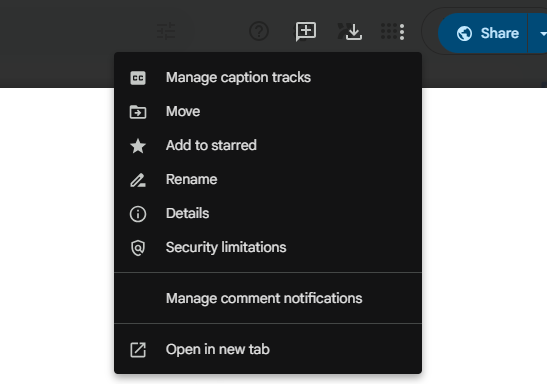
- Click the three dots "Options" menu in the top right.
- Click "Manage caption tracks."
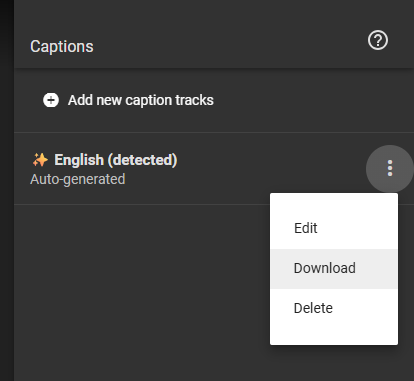
- In the captions tracks pane, click "download" in the options menu.
- Open the .vtt file using any text editor available.
- Copy the file.
- Paste it into a Google Docs file.
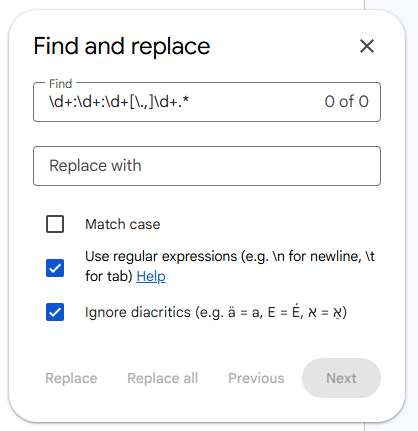
- Open "Find and replace" in Google Docs.
- In the find and replace dialogue box enter this exact string in the "find" box
\d+:\d+:\d+[\.,]\d+.* - Leave "replace" empty.
- Click the box to enable "Match using regular expressions".
- Click replace all.
- Share the file as appropriate.
- Copy and paste the link into meaningful text with sufficient color contrast in the documents where it is needed.
Last modified: Monday, April 6, 2026, 3:23 PM