Creating Transcripts of Your Own YouTube Videos
Completion requirements
When you create videos of presentations and add them to YouTube for students or another audience to view, you must create a transcript of the video.
These steps have been tested on video shorter than 30 minutes. On those longer than 10 minutes, the Docs page freezes.
- Upload the video to YouTube and allow the automatic captioning to complete.
- Double check the captions to ensure the are correct and speakers are correctly identified.
- Click the pencil icon to edit the edited captions.
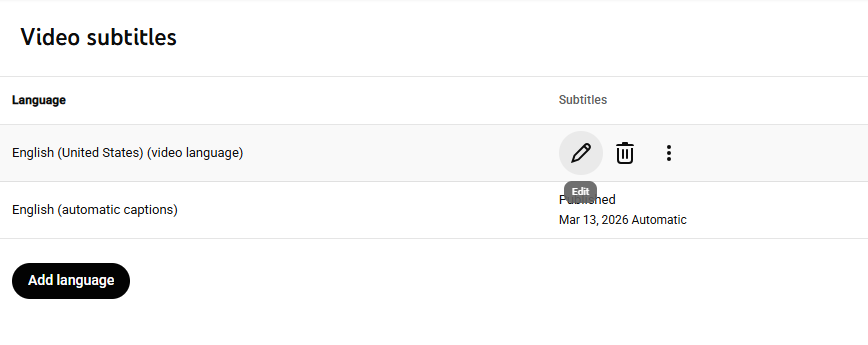
- Click the "three dots" options menu, then click "Download captions" to save a .sbv file to you computer.
- Open the .sbv file using any text editor available.
- Copy the file.
- Paste it into a Google Docs file.
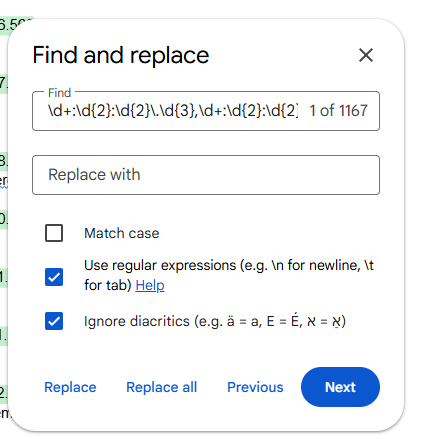
- Open "Find and replace" in Google Docs.
- In the find and replace dialogue box enter this exact string in the "find" box
\d{2}:\d{2}:\d{2}\.\d{3} --> \d{2}:\d{2}:\d{2}\.\d{3} - Leave "replace" empty.
- Click the box to enable "Match using regular expressions".
- Click replace all.
- Share the file as appropriate.
- Copy and paste the link into meaningful text with sufficient color contrast in the documents where it is needed.
Last modified: Monday, April 6, 2026, 3:26 PM