Adding an Assignment to Your Classroom
Completion requirements
Assignments are digital drop boxes where students can upload PDF and other files.
To add one to your classroom:
- Turn editing on;
- "Add an activity or resource;"
- Add a meaningful name;
- Attach files if necessary (this is useful if you have directions or resources that students need for the assignment; it is best to attach PDF files to ensure everyone can open them);

- Set the availability dates if necessary
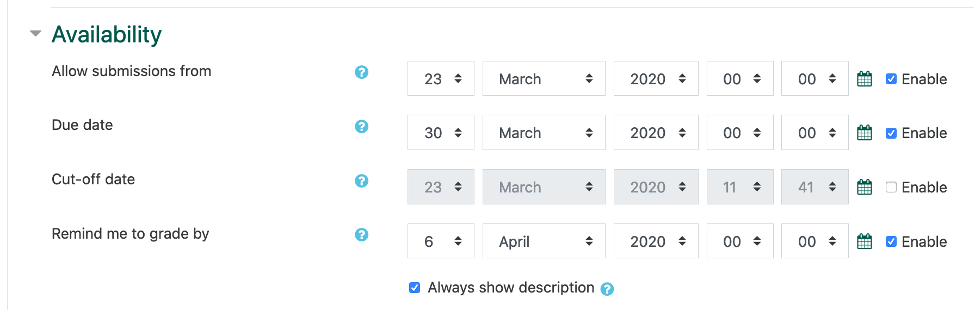
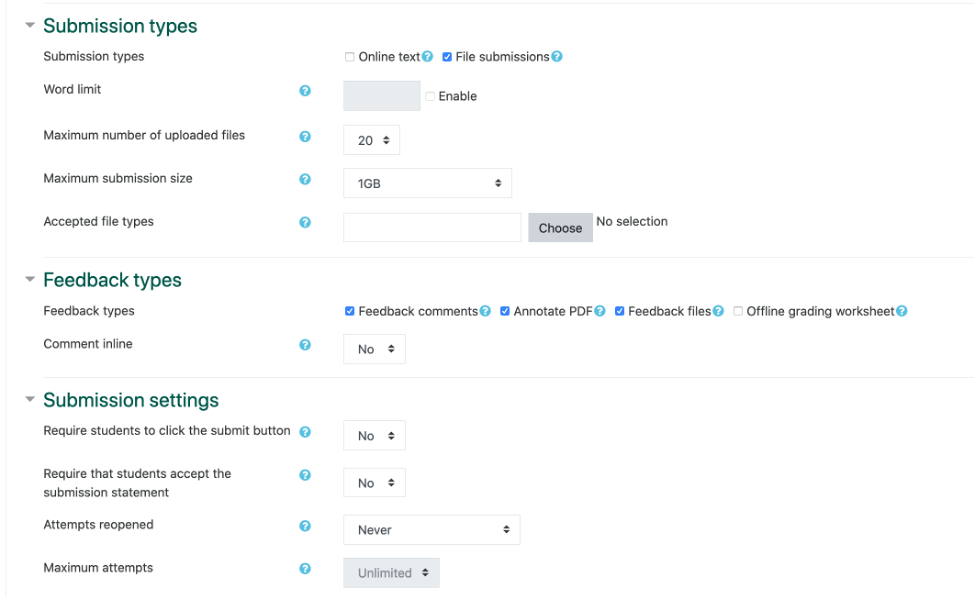
- By default file submissions are enabled; "Online text" provides a text box where students can type (or paste) answers
- Word limit is applied to online text submissions
- Accepted files types are PDF, docx, xlsx, rtf, ppt, and other common files; those who teach students who submit unusual media files for other documents should contact IT to ensure they are allowed
- Most faculty want to provide "Feedback comments," Annotate PDF," and "Feedback files"
- By allowing for 2 attempts, faculty can ensure students can fix submission when they accidently upload the wrong file
- When group submissions are enabled, multiple individuals will be able to edit submissions
- Notifications on assignments can be set here, but also depend on individuals' preferences

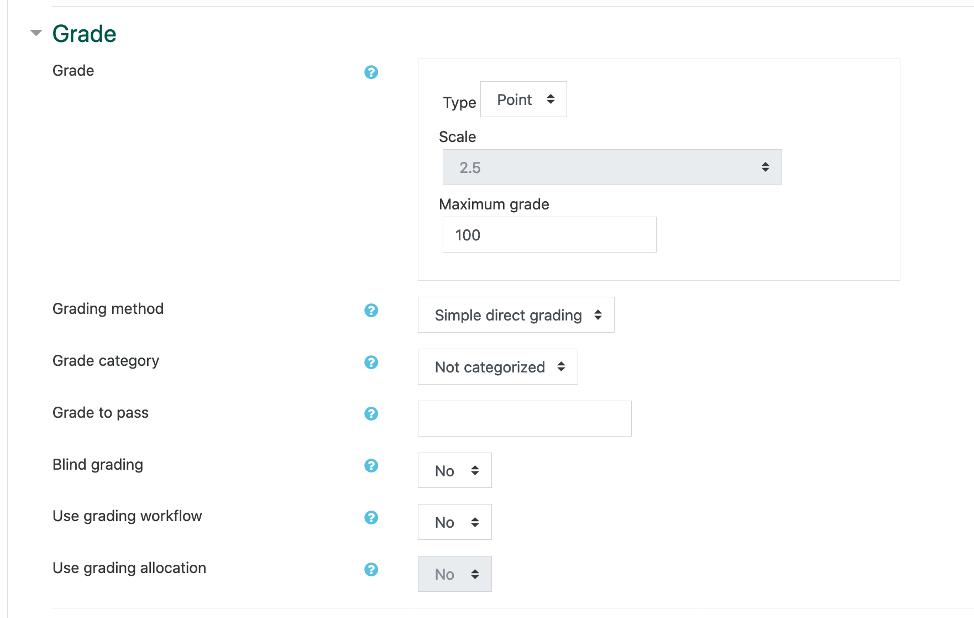
- Most faculty want to grade by point, and simple direct grading
- Common module settings are rarely changed
- Restricting access allows the instructor to determine who sees an assignment or when they see it; for example, access can be restricted based on the student's grade on an earlier assignment or quiz

Last modified: Friday, September 25, 2020, 8:36 AM